Frequently Asked Questions
Everything you need to know about setting up and using Fake Webcam virtual camera software.
Download and install the latest beta version from:
http://www.fakewebcam.com/download/setup7.4.0.0-10.exe
Once installed, open https://webcamtests.com in Chrome or Firefox to configure Fake Webcam as the default camera for browser-based video applications like Google Meet, Zoom web, and Facebook video.

Most video apps like Zoom, Teams, and Skype automatically detect Fake Webcam as a virtual camera. If you already have a physical webcam installed, you may need to manually select Fake Webcam in the app's camera settings.
Step-by-step setup guides for specific apps:
- How to use Fake Webcam with Zoom
- How to use Fake Webcam with Microsoft Teams
- How to use Fake Webcam with Google Meet
- How to use Fake Webcam with Discord
- How to use Fake Webcam with WhatsApp
- How to use Fake Webcam with Facebook Messenger
- How to use Fake Webcam with Instagram
- How to use Fake Webcam with Snapchat
- How to use Fake Webcam with Twitch
- How to use Fake Webcam with Omegle
- How to use Fake Webcam with Camsurf
- How to use Fake Webcam with Emerald Chat
- How to use Fake Webcam with Skype
- How to use Fake Webcam with Yahoo Webcam
- How to use Fake Webcam with Yahoo 10
- How to use Fake Webcam with Windows Live Messenger
- How to use Fake Webcam with CamFrog
- How to use Fake Webcam with Chatroulette
- How to use Fake Webcam with Google Talk
- How to use Fake Webcam with AOL/AIM
- How to use Fake Webcam with Paltalk
- How to use Fake Webcam with ICQ
Yes. You can rename the virtual camera to any name you like during the installation process.
If you have already installed it, uninstall the current version and reinstall from here. For detailed instructions with screenshots, see the renaming guide.
You can download free sample webcam video clips from our Sample Movies page. These are ready-to-use videos formatted to work well with Fake Webcam.
Yes. In most applications you can switch cameras from the video settings during a call. For example in Zoom, click the arrow next to the camera icon to choose a different camera source and switch between your physical webcam and Fake Webcam at any time.
Yes. Fake Webcam is now completely free so you can install it on as many computers as you like with no restrictions. Simply download and install from our home page.
A codec is needed to decode and play video files. If your video isn't playing correctly in Fake Webcam, installing a codec pack usually fixes it. Recommended options:
- Windows Codecs Pack — supports flv, mkv, avi, mp4, ts, m4v, and many more formats.
- DivX — popular codec for DivX and MP4 video.
- XP Codec Pack — comprehensive pack supporting AC3, DTS, MPEG-4, QuickTime, and more.
- K-Lite Codec Pack — widely used, user-friendly all-in-one solution.
Fake Webcam is now free software and no longer requires registration or a license key. You can download and use it on any computer at no cost.
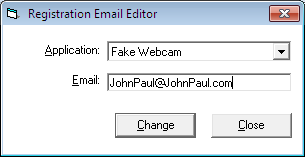
If you have an older paid version installed and need to update your registration email, use the Registration Email Editor utility.